Invoice processing without retyping: how it works
 Jesse ScherpenJune 2, 20268-minute read
You process invoices without retyping by having incoming PDFs and e-invoices read straight from your inbox, checked and set up in your accounting software. Where older scanning programs get stuck as soon as an amount sits in a different spot, smart text recognition understands what each part of an invoice means. You only review the exceptions before you pay, as long as you set up the checks properly in advance.
Why standard scan features get stuck on your PDF invoices
The built-in scan feature of accounting software often looks for text in fixed places. That's why reading an invoice fails as soon as a supplier changes their layout. Modern text recognition doesn't look at fixed boxes, but understands what's on the document.
Many business owners think a PDF in their email is already a digital invoice that their accounting software understands right away. It isn't. As the Dutch Chamber of Commerce (KVK) explains in its page on how e-invoicing works (in Dutch), a PDF is a digital picture for human eyes. A real e-invoice is a structured file that your accounting software reads in directly.
Far from all suppliers send a structured file like that. You still get plenty of separate PDF attachments, order summaries in your email or photos of paper receipts from the shop floor. Older scanning programs lay a fixed template over those. If the total is on the left for once instead of at the bottom right, recognition gets stuck and you end up typing it in yourself after all.
AI text recognition reads the page as a whole, the way you do yourself. The system understands that 'Total', 'Amount due' and 'Grand total' all mean the same thing, no matter where the supplier puts it. Even a photographed receipt or a paper form from your field staff turns into clean fields this way, which means less manual work in your business. The next question is how a document like that gets from your inbox into your books.
Processing supplier invoices from inbox to accounting software
Processing supplier invoices takes three fixed steps: catch the attachment from your email, check the amounts and lines against your purchases, and set up the entry for your approval. The system does the searching and typing, you keep the final say.
How do supplier invoices reach you now: as separate PDFs in different inboxes, through one dedicated accounting address or as a photo from the shop floor? And what do you check yourself before you pay an invoice: do you only look at whether the total is right, or do you put every invoice line next to the order? Your answers to those two questions decide how you set up the three steps.
Step 1. Pull the attachment from your email and read it
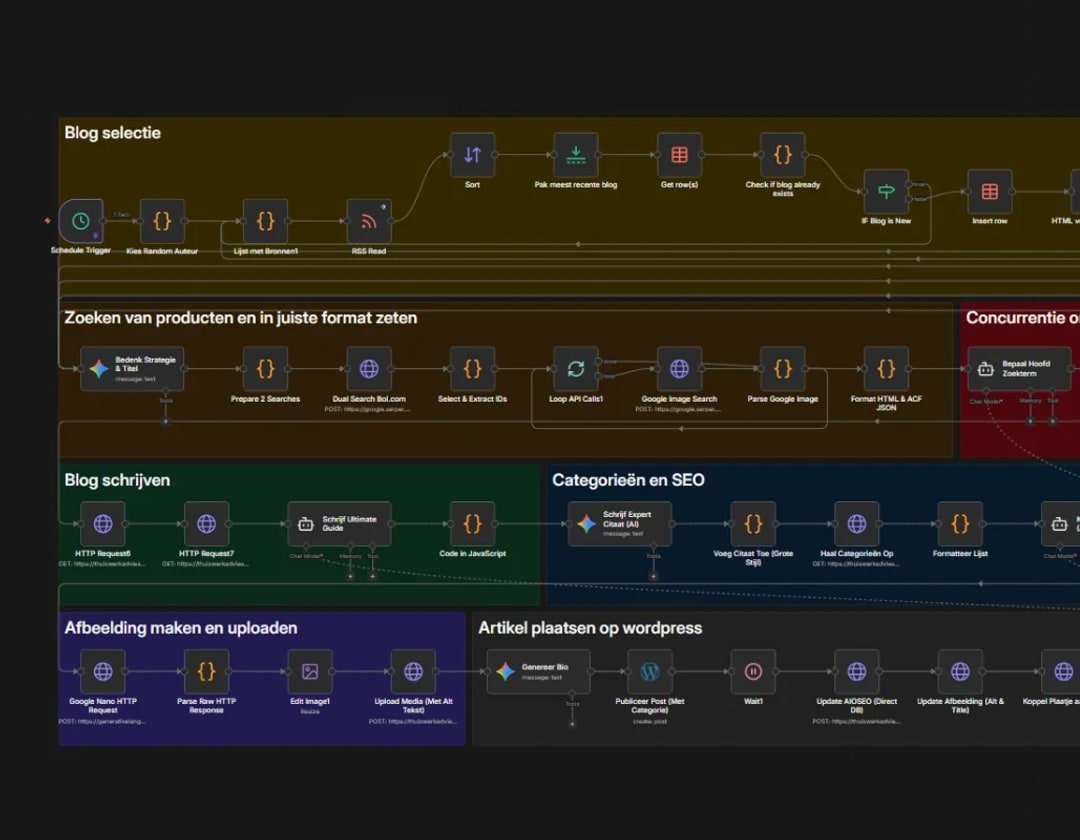
Start where most documents come in and set up one dedicated email address or one folder for your bookkeeping. As soon as an email with a PDF or photo arrives there, the system picks up the attachment. An AI model for invoice processing then automatically pulls data such as the supplier, the invoice date, the separate invoice lines and the total from the document.
Step 2. Match amounts and lines against your purchases
If you only check the total and the VAT when you pay, reading the header details is enough. If you compare every line with an earlier order or packing slip, have the system put the item numbers, quantities and prices it read right next to your purchases. If everything matches, the invoice goes through. If an amount or quantity is off, the system flags exactly that line for review.
Step 3. Set it up for approval in your accounting software
You don't have to switch accounting software to use this. As long as your current software can receive data from outside, a connector sets up the entry right away in the software you already use. You open your accounting software, check the flagged items and give the go-ahead for payment.
For an online store, we worked out step by step how orders turn into invoices on their own. Not every document needs the same route, because the best approach depends on how your suppliers send their documents.
What are the ways to process invoices digitally?
There are four ways to process invoices digitally: retyping them yourself, using the built-in scan of your accounting software, reading in e-invoices or using AI text recognition. Which route works for you depends on how many separate PDFs and receipts you get alongside your regular e-invoices.
| Method | When it works | Where it gets stuck | What you still do |
|---|---|---|---|
| Retyping by hand | A few invoices a month | A growing number of orders or long packing slips | Typing in and checking everything yourself |
| Standard scan in your software | Invoices with a simple, fixed layout | Changing PDF layouts, separate lines or crooked photos | Filling in missing fields and fixing errors |
| Real e-invoices | Regular suppliers who send a structured file | Foreign suppliers, separate PDFs and paper receipts | Only checking exceptions and new suppliers |
| Custom AI text recognition | Changing PDFs, order forms from your email and photos from the shop floor | Unreadable receipts without a human check | Reviewing unclear cases and approving the entry |
E-invoices are the cleanest route for regular suppliers who already send them, because no text recognition is needed. AI text recognition fills the gap that's left: the changing PDFs, foreign bills, orders in your email and photographed receipts from technicians on the road. If you close that gap, you do need to keep an eye on three practical limits.
What to watch out for when you automate your bookkeeping
Automating your bookkeeping only works safely if the system sets unclear cases aside, your customer and purchasing data stay protected and the cost per document has a cap. Let go of one of those three, and you shift the work from typing to fixing mistakes.
We'll be honest about what we can do about it, and what we can't.
Jesse Scherpen, owner of SharpClicks
Review unclear cases and blurry receipts first
What happens when an invoice or receipt is hard to read, like a crumpled gas station receipt with coffee stains? A well-set-up system never guesses. If an amount or date can't be read clearly, the system recognizes that doubt and sets the document aside with an alert. An employee takes a look, fills in the right number and only then approves the document.
Protect privacy and stay within the GDPR
Invoices, order forms and other paperwork contain names, addresses, bank account numbers and pricing agreements. Under the GDPR, you can't just send those to a public AI program that learns from your business documents. So choose a closed-off business environment where your data isn't used for training. You can also run AI models in the cloud or locally within your own secure environment.
Cap the usage costs per document
AI systems for text recognition often charge per document they read. Those are small amounts per document, until a broken attachment or an error in the connection sends the same file again and again. So always build in a brake. If reading an attachment still fails after a set number of tries, the system stops right away and whoever does your books gets an alert. That keeps the bill predictable, although it doesn't mean every business needs a system like this.
When automating invoice processing doesn't pay off yet
Building your own automation for your invoices doesn't pay off if you get few documents or if your purchasing agreements aren't written down anywhere yet. In these cases, you're better off sticking with the basics of your accounting software or tightening up your own way of working first:
- You get few invoices from regular suppliers: Do only a handful of supplier invoices come in, and do your Dutch suppliers already send a proper e-invoice? Then your current accounting software handles that just fine.
- Your purchasing agreements aren't fixed: If your prices change with every order and nobody records exactly what was ordered, a system has nothing to compare the invoice with. Straighten out your purchasing process first, before you automate the reading.
- Your accounting software doesn't allow connections: Do you process lots of changing PDFs, order forms from your email or receipts from technicians? Then first check whether your accounting software is open to connections from outside, before you choose to have your own AI system built.
If you do have a stack of changing PDFs and software that can be connected, you can start preparing this week.
How to tackle your invoice flow this week
You don't have to connect any software right away to stop retyping. With these three steps, you lay the groundwork for a tight invoice flow this week:
- Step 1. Set your tricky invoices aside: Collect the incoming invoices, order forms and loose photos from the past period. Write down for which suppliers the standard scan in your accounting software gets it wrong now.
- Step 2. Set up one dedicated inbox: Create one email address for all purchasing documents. Agree internally who reviews the flagged unclear cases and who approves the final payment.
- Step 3. Map out your checks on paper: From inbox to accounting software, write down which fields you want read. Also decide which order or list the system should compare against and when you give the approval yourself.
Sources
- E-invoicing is coming, KVK (in Dutch)
- Prebuilt model for invoice processing, Microsoft Learn (in Dutch)
Frequently asked questions
What's the difference between a PDF invoice and an e-invoice?
A PDF invoice is a digital picture for human eyes, while a real e-invoice is a structured file that your accounting software reads in directly. With a PDF, a scan feature or smart text recognition first has to find the amounts and lines. With an e-invoice, that data already sits in a fixed place under the hood, so text recognition isn't needed.
Can I process invoices automatically in my own accounting software?
Yes. You don't have to switch accounting software, as long as your current software can receive data from outside. A connector takes the attachment from your email, has the data and lines read and sets up the entry right away in the software you already use. You open your own accounting software, look at the flagged unclear cases and approve the payment yourself.
Is it safe under the GDPR to have AI read your invoices?
It is if you use a closed-off business environment where your documents aren't used to train public models. Invoices and order forms contain names, addresses, bank account numbers and pricing agreements that you can't send to a public AI program. So you can run the model in a secure business cloud or locally within your own environment.
What happens if an invoice or receipt is hard to read?
With a hard-to-read invoice or a crumpled receipt full of stains, a well-set-up system never guesses. As soon as an amount or date can't be read clearly, the system recognizes that doubt and sets the document aside with an alert. An employee then takes a quick look, fills in the right number and only approves the document after that.
 How we can help
AI automation. Work that does itself. One-time build €750 to €2,500.
See the service
Written by Jesse
Jesse Scherpen is the owner of SharpClicks. He studied e-commerce at Windesheim, wrote blogs himself and managed ads for clients, and now builds the systems that take over that work.